
Foil Drive App OverviewUpdated 14 days ago
The Foil Drive App allows you to connect to and configure your Gen2 and Gen2.5 Foil Drive system. The app provides access to power settings and other system configuration options, with additional features and improvements planned for future updates.
Compatibility: The Foil Drive App is designed for Gen2 and Gen2.5 systems only. It is not compatible with Gen1 systems.
The app is available for Apple and Android devices and is free to download.
Note: When connecting to the App, it currently shows the App Default settings, and not your last saved settings. Your system will retain the last settings you wrote to the unit, until you physically go through and scan the unit and battery again and change the settings.
For instructional video, see: Foil Drive App: Overview
Downloading the App
Search for Foil Drive in the Apple App Store or Google Play Store and download the app.
The first time you use the app, you will be asked to grant certain permissions. These may include:
- Camera – required to scan QR codes
- Location
- Nearby devices
- Notifications
Some permissions are required for the app to communicate with your Foil Drive system. You will not normally need to repeat the permission setup on subsequent uses.
Connecting to Your Foil Drive System
Before connecting:
- Install a battery into your Foil Drive system.
- Turn the system on.
- Ensure the controller is off.
- Check that the propeller cannot spin before proceeding.

1. Select Your Foil Drive Unit
- Open the Foil Drive App.
- Select Get Started.
- Select Scan Unit.
- Turn your Foil Drive unit over to access the QR code on the side of the unit.
- Scan the QR code using your phone's camera.
The QR code identifies the Foil Drive unit you are connecting to.
Manual Entry
If you cannot scan the QR code, select Manually Enter Code and enter the three-letter code printed next to the QR code.
2. Scan Your Battery
The app will then ask you to Scan Battery. 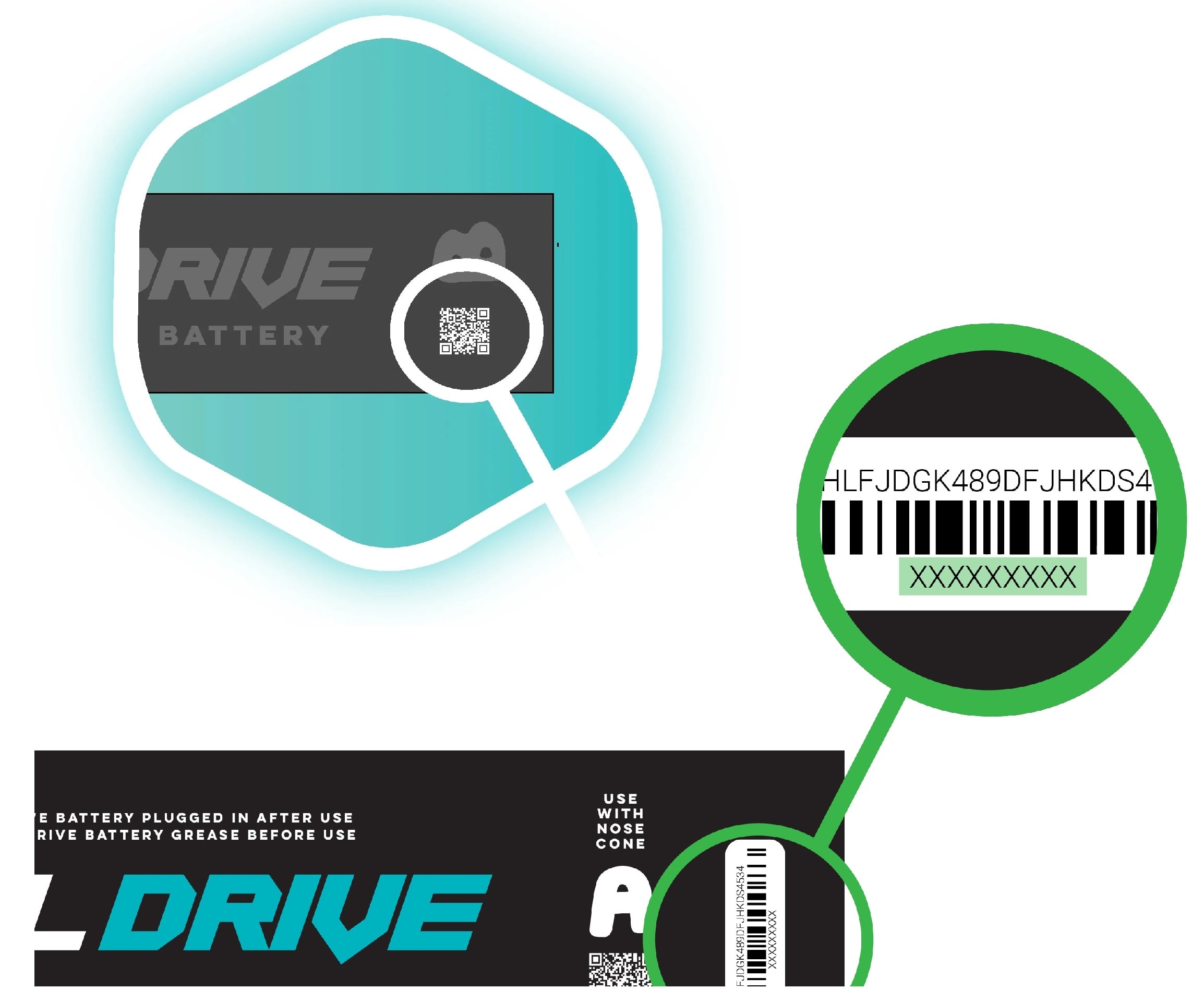
It is important to identify the battery you are using, particularly if you have multiple Foil Drive batteries. The battery type determines which power settings and maps are available for your system.
- Select Scan.
- Scan the QR code on the battery.
- Alternatively, select Manually Enter Code and enter the code printed next to the battery QR code.
3. Connect to the System
After scanning the battery, the app will display Waiting Connection.
Keep your phone as close to the Foil Drive unit as practical. For the best connection, keep the phone within approximately 30 cm (1 ft) of the unit.
Once connected, the app will allow you to configure your Foil Drive system.
Power Modes
The app provides four power modes:
- Learn – A balanced power setting designed for learning and general use.
- Low – The lowest power setting.
- Medium – A mid-range power setting.
- High – The highest standard power setting.
To learn more about Power Modes, click here.
Boost Mode
Boost Mode temporarily increases power above the selected standard power mode.
It is designed primarily to provide additional thrust when getting up and onto foil, particularly when using:
- Smaller boards
- Smaller foils
- Setups requiring additional initial thrust
You can select the amount of additional Boost power in the app.
To Learn more about Boost Mode, Click here.
Latency
Latency is an advanced setting that controls how long the Foil Drive system waits after losing communication with the controller before shutting down the motor.
For example, if you fall into the water while the motor is running, the system needs to determine whether the controller has genuinely lost communication or whether the signal has been temporarily interrupted.
To Learn more about Latency, Click here.
Important: Check Your Settings Each Time You Reconnect
The Foil Drive system remembers the settings that were previously saved to it. However, the app uses its own default values when you enter the setup process.
This is particularly important for Latency.
For example, if you previously changed your latency from the default 330 ms to 500 ms, you must select 500 ms again when going through the app setup if you are changing other settings.
Similarly, you need to select your desired:
- Power Mode
- Boost setting
- Latency setting
each time you configure the system through the app.
Important: Always check all settings before confirming the setup. Do not assume the app has remembered your previous selections.
Tilt Sensor
The Tilt Sensor is a built-in safety feature exclusive to the Foil Drive Fusion System (Gen 2.5). It is enabled from factory and is designed to automatically shut off the motor if your board tilts beyond a pre-set range. This feature helps prevent the motor from running when your board is upside down, off balance, or in an unsafe position.
What Does the Tilt Sensor Do?
The Tilt Sensor continuously monitors your board’s pitch (forward and backward angle) and roll (side-to-side tilt).
If your board goes beyond the programmed tilt range, the system will instantly cut power to the motor.
To learn more about Tilt Sensor, Click here.
Completing Setup
Once you have selected your desired settings:
- Review the displayed system configuration.
- Confirm your settings.
- The app will write the selected settings to your Foil Drive system.
- Wait for the app to display Ready to Fly.
- Select Done to return to the home screen.
Your Foil Drive system is now configured with the selected settings.
Connection Timeout
For safety, the app will automatically disconnect if the setup process takes too long.
If this happens:
- Reconnect to the system.
- Review your settings.
- Confirm the setup again.
Troubleshooting Connection Issues
If you are having difficulty connecting the Foil Drive App to your system, see our Connection Troubleshooting guide for assistance.
If you continue to have difficulty connecting, contact Foil Drive Support.
FAQ
Do I need to go into the App every time I use my system?
No. You do not need to go into the App unless you want to change your last saved settings.