Connection TroubleshootingUpdated a month ago
This article is for anyone experiencing difficulty connecting their Gen2 or Gen2.5 Foil Drive system to the Foil Drive App.
The app will usually provide an error message or suggested action if there is a problem connecting or programming your system. Follow the relevant troubleshooting steps below.
Compatibility: The Foil Drive App is currently compatible with Android 12 and later and iOS 11 and later.
Important: If your phone uses an unsupported operating system, you can still use your Gen2 Foil Drive system, but you will be limited to the system's default settings. App compatibility may be expanded in future updates.
Enable Location
If the app asks you to enable Location:
- Swipe down from the top of your phone screen to open the quick settings.
- Turn Location ON.
- Return to the Foil Drive App and continue the setup process.
On some phones, Location services must be enabled for the app to detect nearby devices.
Enable Bluetooth
If the app asks you to enable Bluetooth:
- Swipe down from the top of your phone screen to open the quick settings.
- Turn Bluetooth ON.
- Return to the Foil Drive App and continue the setup process.
Make sure Bluetooth remains enabled throughout the connection and programming process.
"Invalid Battery Code"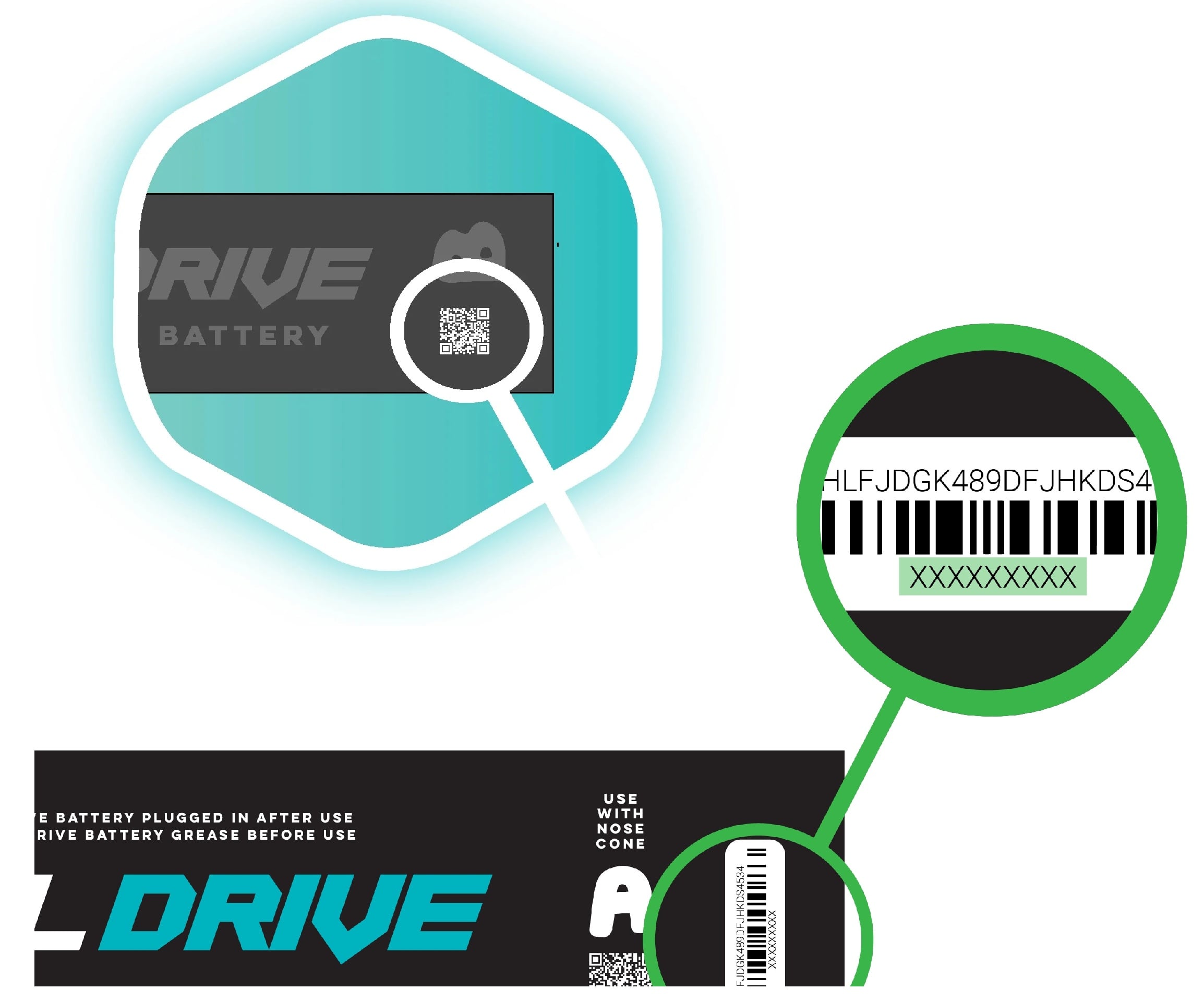
Ensure you are using the code underneath the serial number, as shown in the graphic.
The battery code is made up of numbers, proceeding the first two letters. Ensure you use the number zero, and not the letter 'O'.
"No Connection" Error
The No Connection error can occur if the battery has not been correctly or completely connected to the Foil Drive unit during the setup process.
Try the following:
- Disconnect the battery from the Foil Drive unit.
- Reconnect the battery securely.
- Wait a moment for the system to power up.
- Select Try Again in the Foil Drive App.
Check the Distance
For the best connection:
- Keep your phone within 1 metre (3 ft) of the Foil Drive unit.
- Keep other active Foil Drive systems at least 10 metres (30 ft) away.
This helps prevent interference from nearby Foil Drive systems during the connection process.
"Connection Lost" Error
The Connection Lost error can occur if your phone moves too far away from the Foil Drive unit while the system is being programmed.
Try the following:
- Move your phone back within 1 metre (3 ft) of the Foil Drive unit.
- Select Reconnect in the app.
- If the connection does not restore, completely close the Foil Drive App.
- Re-open the app and start the connection and programming process again.
Keep your phone close to the Foil Drive unit until programming is complete.
"Unsupported Firmware" Error
If the app displays an Unsupported Firmware error, first make sure you are running the latest version of the Foil Drive App.
This issue was addressed in App version 1.0.6.
Try the following:
- Open the Apple App Store or Google Play Store.
- Check for an available Foil Drive App update.
- Install the latest version.
- Re-open the app and try connecting to your Foil Drive system again.
If you are already using the latest app version and continue to receive the Unsupported Firmware error, contact Foil Drive Support for assistance.