
Reprogramming your Units Power ModesUpdated 22 days ago
This article contains information on how to reprogram the power mode on your Gen 2 or Gen 2.5 Foil Drive units using the Foil Drive app.
Update your APP on IOS HERE
Update your APP on ANDROID HERE
Getting Started
Pairing your unit to the app
Once you have downloaded and opened the app, you will then begin the pairing process with your new unit.
What you’ll need:
- Gen2/2.5 Housing
- Gen2/2.5 Battery
NOTE: You MUST Re-Calibrate your controller after updating the app / system / V3 controller
Instructions:
Click on the app. The following screen will load.
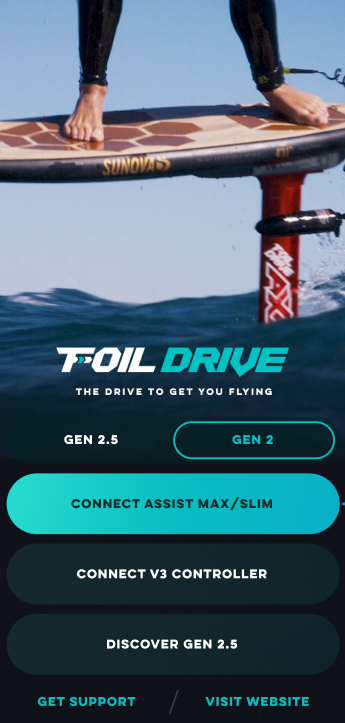
Click 'Gen 2' / 'Gen 2.5' to begin.
To adjust power modes click 'Connect Assist MAX/Slim' or 'Connect Fusion'
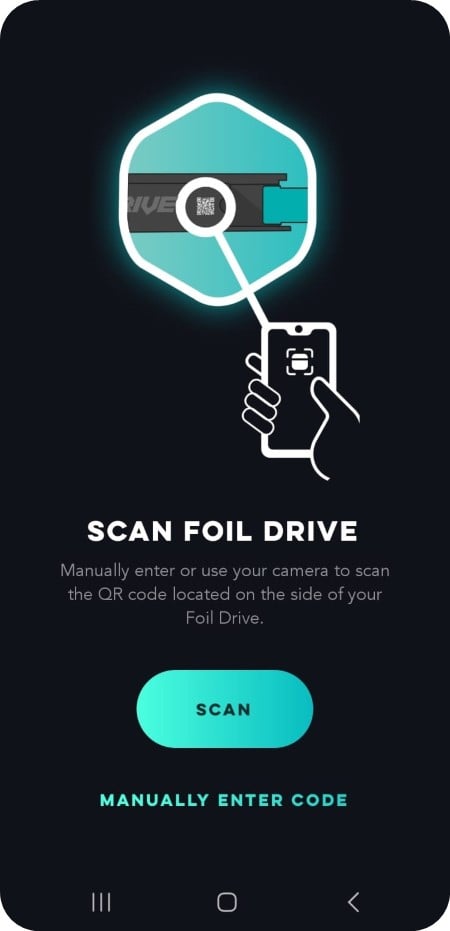

Scan Foil Drive.
Manually enter or use your camera to scan the QR code located on the side of your Foil Drive.
*not required for Gen 2.5 Fusion users as Bluetooth connection will automatically occur.
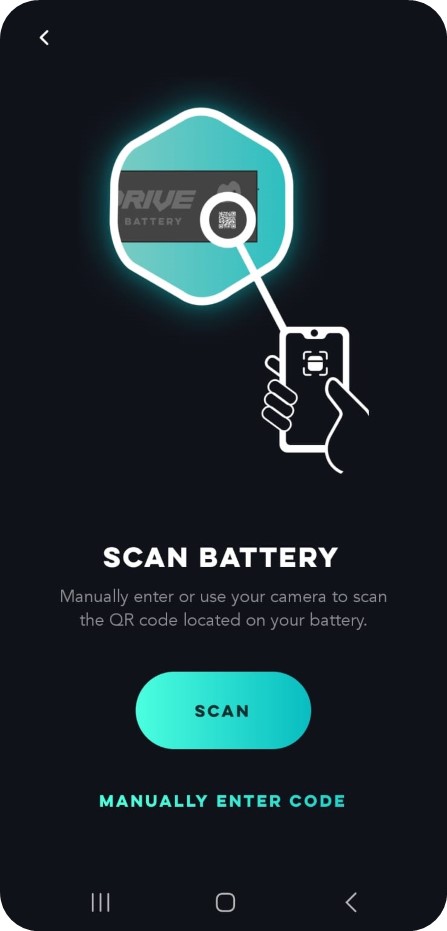
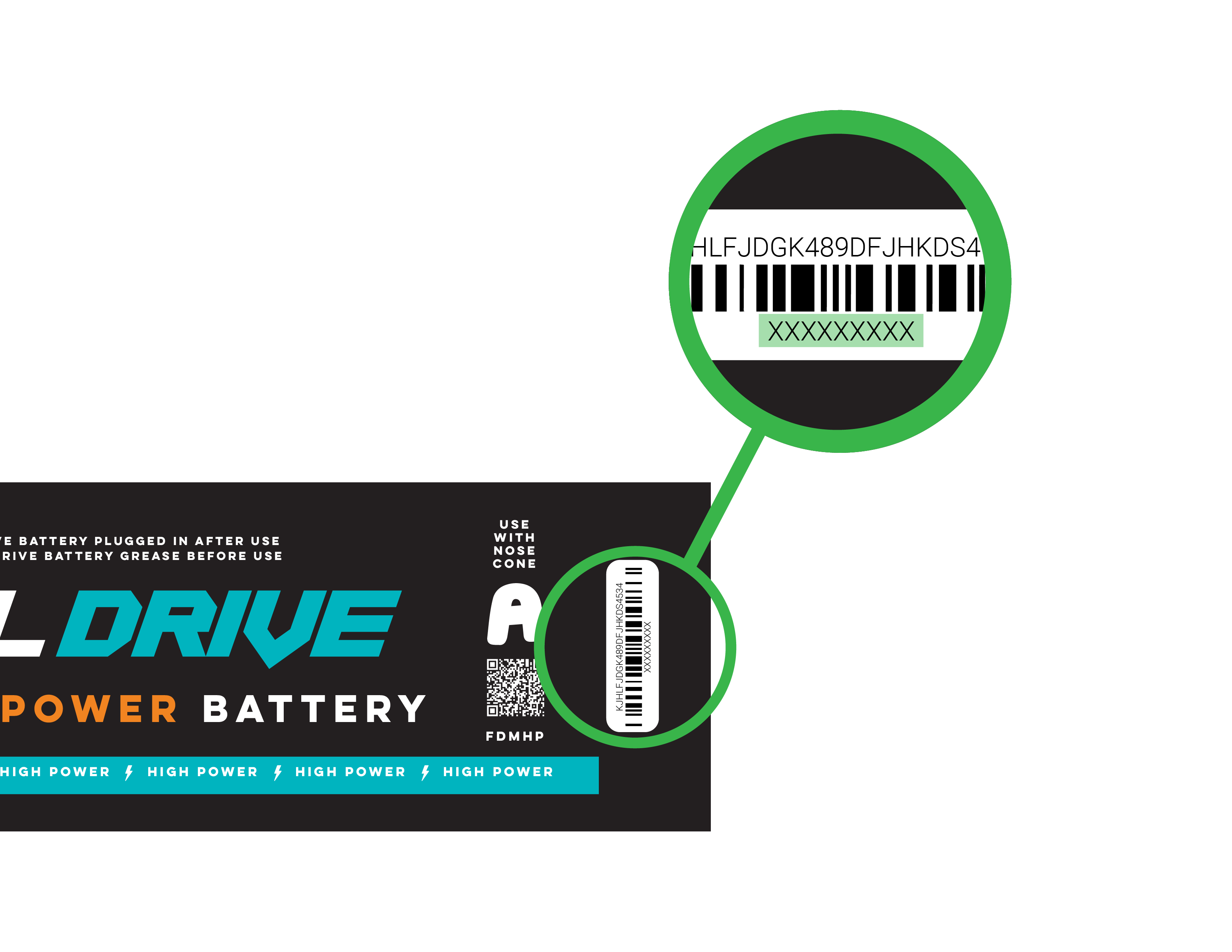
Scan Battery.
Manually enter or use your camera to scan the QR code located on your battery.
*not required for Gen 2.5 Fusion users as Bluetooth connection will automatically occur.
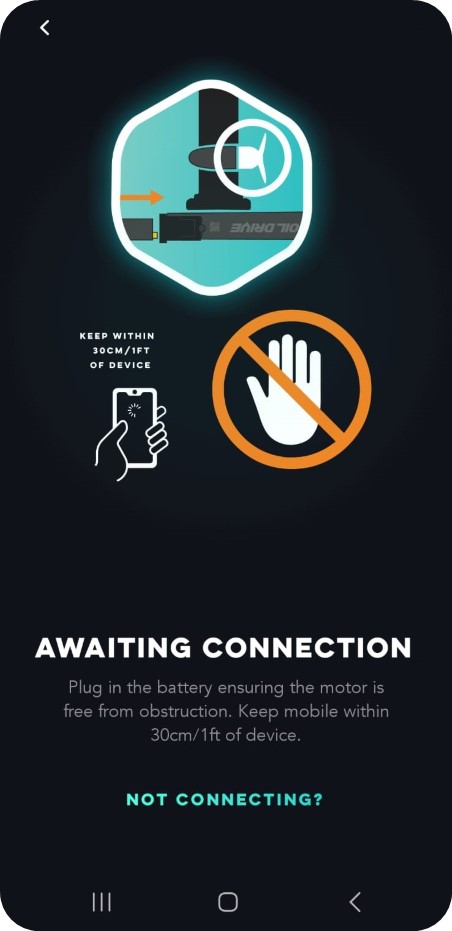
Awaiting Connection.
Plug in your battery, ensuring the motor is free from obstruction.
Keep mobile within 30cm/1 of device during the pairing process.

Connected!
You are now connected to your Foil Drive device.
Congratulations! The initial connection is now complete. The next step is to setup your Foil Drive. The information below will outline the different modes and how to change them.
Setup/Reprogram Foil Drive
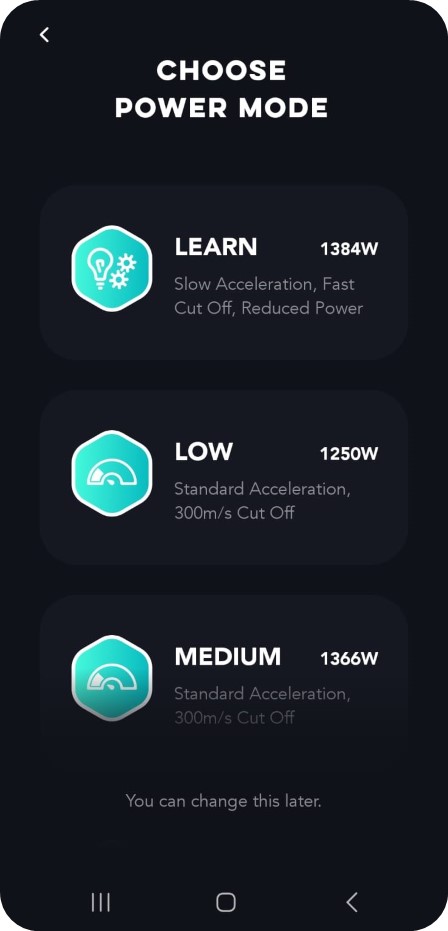
The following screen will come up next where you can browse the different Power Modes available.
In the app, click on each Mode to learn more or Click here to read more about the different Power Modes.


Power Mode.
Once you have chosen your desired Power Mode, click 'Confirm'.
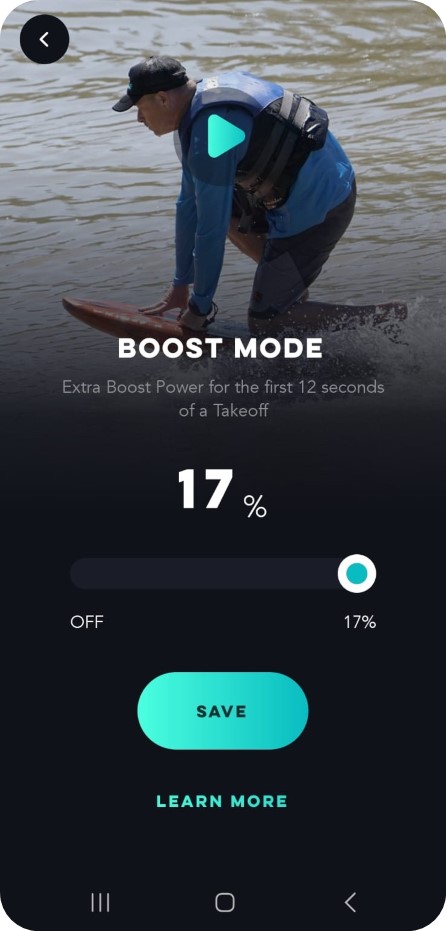
Boost Mode.
You will then be able to adjust the Boost Mode percentage. The Boost Mode allows the user to add EXTRA Boost Power for the first 12 seconds of a Take Off. Not required? You can switch it off here.
Click here to read more about Boost Mode.
In the app: click the video icon to learn more about Boost Mode.
Click “Save”.
For Gen 2.5 Fusion Users:
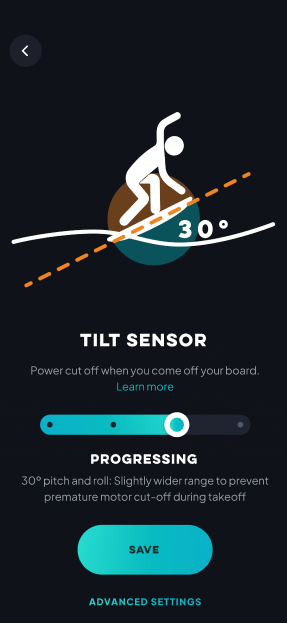
Tilt Sensor
Gen 2.5 units come with a tilt sensor feature. To learn more about tilt sensor click here.
Slide the bar to adjust tilt sensitivity.
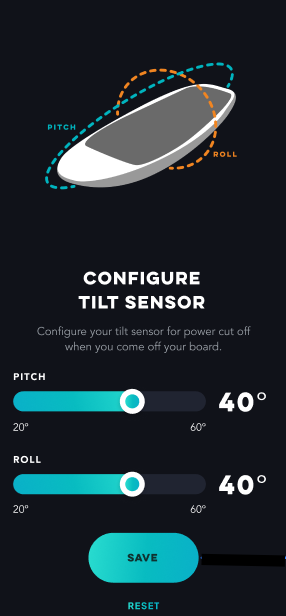
Advanced Tilt Sensor Options
Advanced tilt sensor adjustments can be found in this menu. Pitch and Roll can be individually edited based on preference.
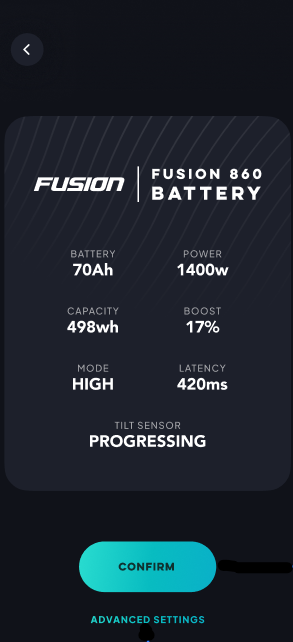
Overview.
Once you confirm your boost mode, this screen will come up next. Here you can view your settings you have selected.
You also change the latency on this page.
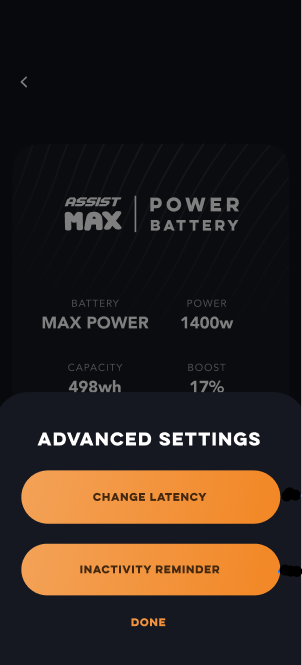
Advanced Options.
At the bottom of the overview menu there is an option for advanced settings. Here you can make changes to the latency and inactivity reminder
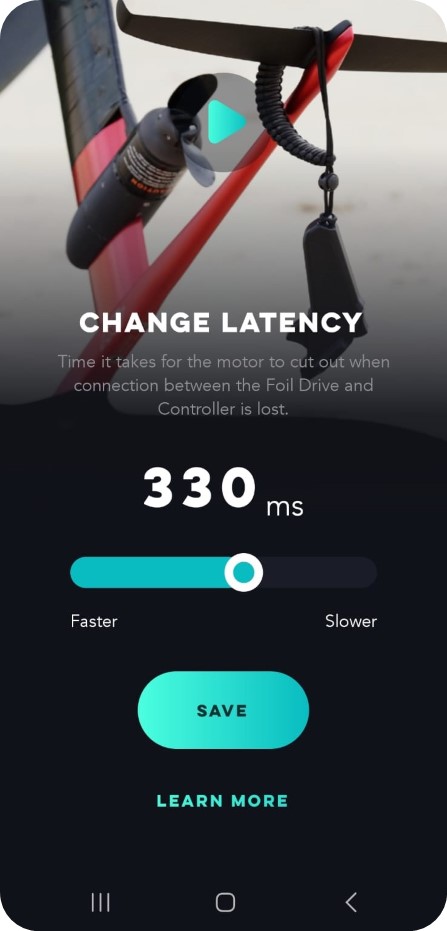
Change Latency.
The time it takes for the motor to cut out when the connection between the Foil Drive and Controller is lost.
Click here to read more about latency.
In the app: click the video icon to learn more about latency.
Once done, click ‘Save’.
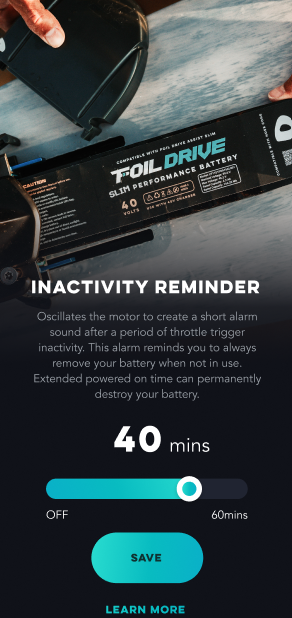
Change Inactivity Alarm
The inactivity alarm allows customers to set an Inactivity Alarm timer as a reminder to unplug the battery when not in use. This is set to 15 minutes as a default.
This serves as a reminder that your unit is powered on with the battery connected.
The alarm can be programmed as per your preference or powered off by setting the timer to zero.

Saving Programming.
This will only take a few seconds.
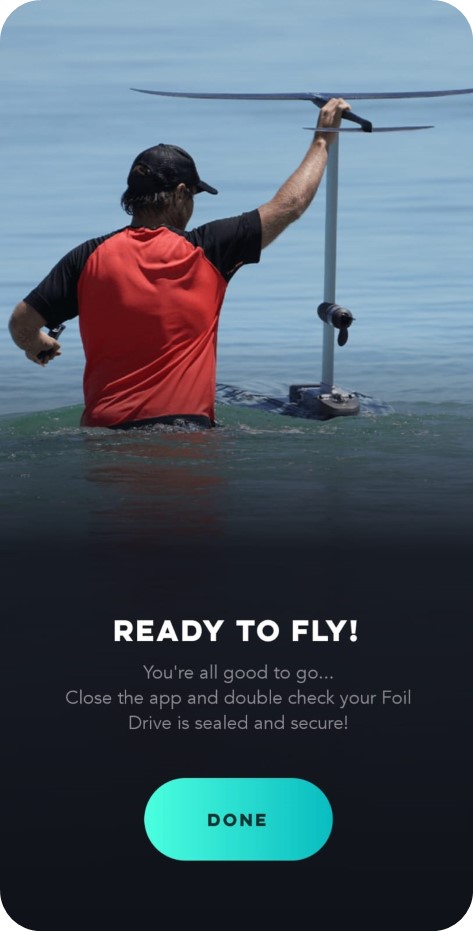
Ready to Fly.
Your Foil Drive is now programmed.
Close the app.
Double check your Foil Drive is sealed and secure!