
How to Program Your Foil DriveUpdated 19 minutes ago
The Foil Drive App allows you to program your Gen2 and Gen2.5 Foil Drive system to suit your needs.
This article explains how to connect your system to the app and change the Power Mode, Adjust Boost and Tilt Sensor as well as advanced settings such as Latency and Inactivity alarms.
Important: After updating your Foil Drive system, app, or V3 Controller, re-calibrate your V3 Controller triggers before riding.
Connect Your Foil Drive to the App
1. Select Your System
- Open the Foil Drive App.
- Select Gen 2 / Gen 2.5.
- Select the connection option for your system:
- Connect Assist MAX/Slim
- Connect Fusion
2. Scan Your Foil Drive
For Gen2 systems: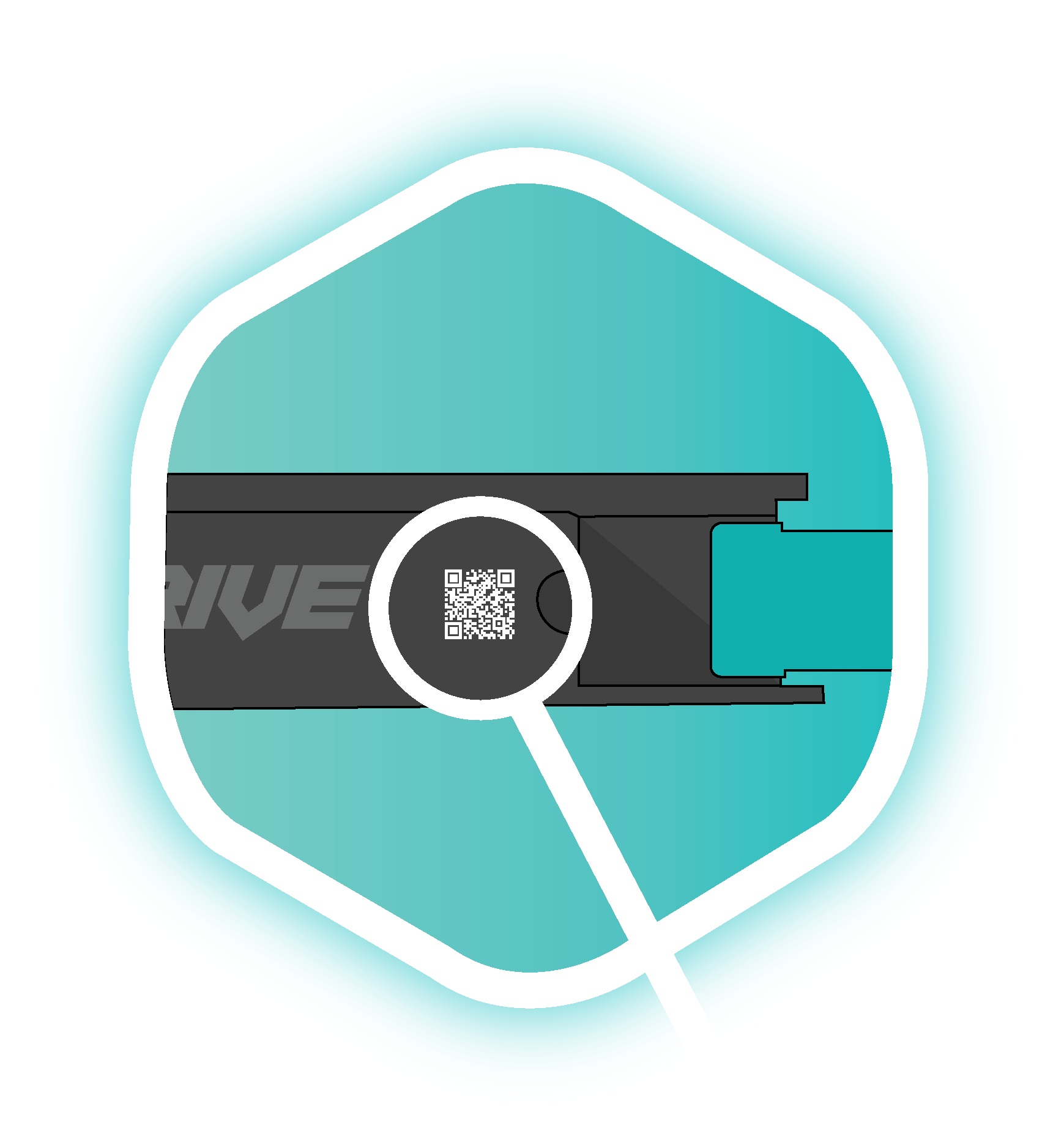
- Select Scan Foil Drive.
- Scan the QR code located on the side of your Foil Drive unit.
- Alternatively, select Manually Enter and enter the code printed next to the QR code.
Gen2.5 Systems: Scanning the Foil Drive unit is not required. The Bluetooth connection will occur automatically.
3. Scan Your Battery
For Gen2 systems: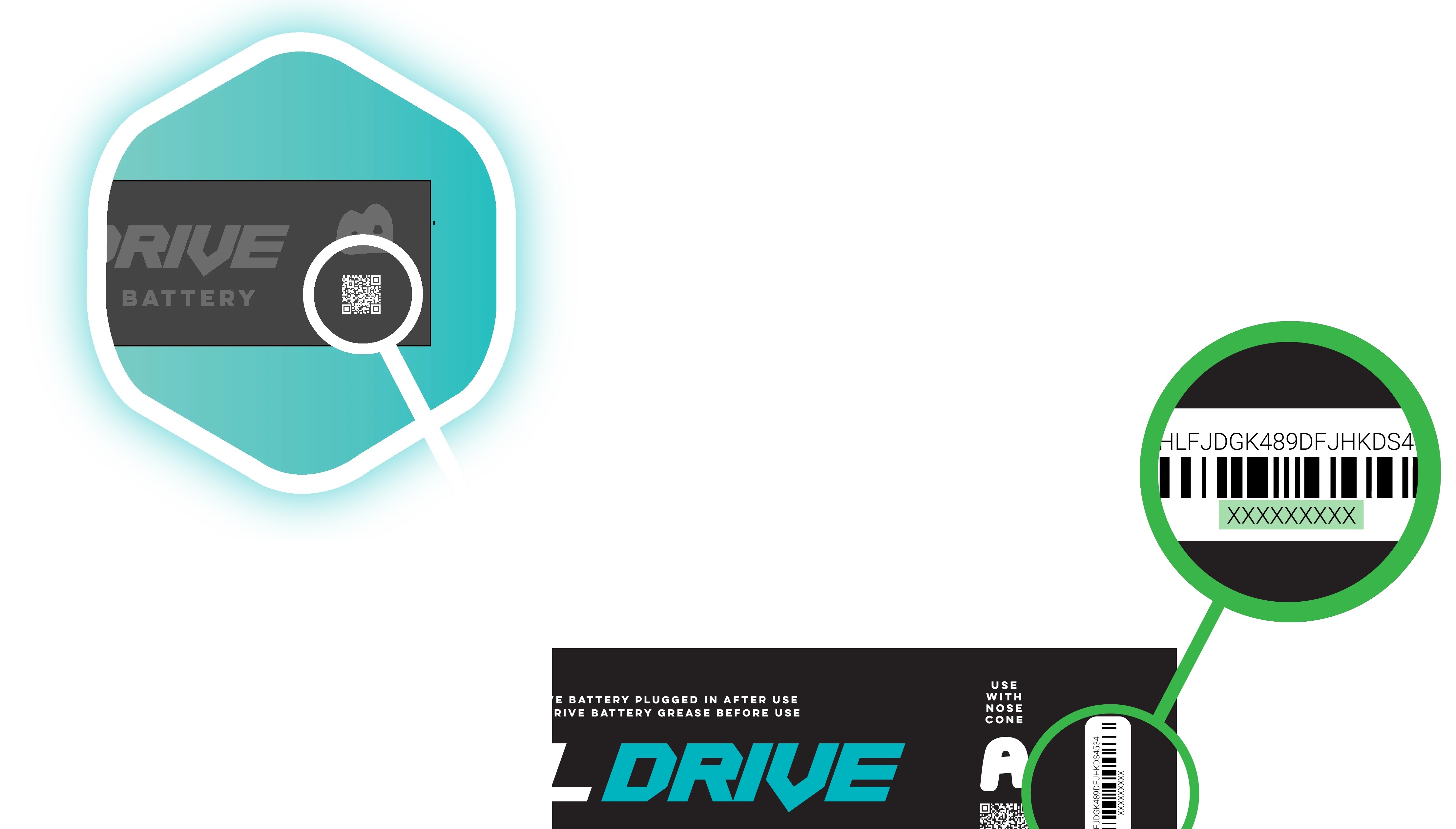
- Select Scan Battery.
- Scan the QR code located on your battery.
- Alternatively, manually enter the battery code.
Gen2.5 Batteries: Battery scanning is not required. The Bluetooth connection will occur automatically.
4. Connect
- Connect the battery to your Foil Drive system.
- Ensure the motor and propeller are free from obstruction.
- Keep your phone within approximately 30 cm (1 ft) of the Foil Drive during the connection process.
- Wait for the app to display Connected.
Your Foil Drive is now connected to the app.
Change the Power Mode
Once connected, the app will take you to Set Up Foil Drive.
The available Power Modes will be displayed on screen.
The available modes are:
- Learn
- Low
- Medium
- High
Select a Power Mode to view more information about that setting.
Choose the Power Mode that best suits your rider weight, board, foil and riding conditions.
Once you have selected your desired Power Mode, select Confirm.
Tip: Higher power is not always better. Using more power than necessary can increase battery consumption without providing a meaningful benefit for your setup.
For more information about each Power Mode, see Foil Drive Power Modes.
Adjust Boost Mode
After confirming your Power Mode, the app will take you to Boost Mode.
Boost Mode provides additional power during take-off.
- Adjust the Boost percentage to suit your setup.
- If you do not want to use Boost, it can be switched off.
- Select Save when you have chosen your desired setting.
For more information, see Foil Drive Boost Mode.
Gen2.5 Fusion – Tilt Sensor
Gen2.5 Fusion systems include a Tilt Sensor.
The Tilt Sensor settings can be adjusted during the programming process using the slider provided in the app.
Advanced Tilt Sensor Settings
Advanced settings allow you to adjust Pitch and Roll sensitivity independently.
Only adjust these settings if you understand how they affect the Tilt Sensor function.
For more information, see Tilt Sensor – Foil Drive App.
Advanced Settings
After configuring your Power Mode and Boost settings, the app will display an Overview of your selected settings.
From this screen, you can access Advanced Options.
Advanced Options include:
- Latency
- Inactivity Alarm
Latency
Latency controls the amount of time before the motor cuts out when communication between the Foil Drive and Controller is lost.
For more information, see Latency | Foil Drive App.
Inactivity Alarm
The Inactivity Alarm provides a reminder to disconnect the battery when the Foil Drive has remained powered on without being used.
The default setting is 15 minutes.
You can:
- Adjust the timer to your preferred duration, or
- Set the timer to 0 to disable the alarm.
For more information, see Inactivity Reminder – Motor Beeping.
Save Your Programming
Once you have selected all your desired settings:
- Review the settings shown on the Overview screen.
- Select Save or Confirm.
- Wait while the settings are programmed to your Foil Drive.
- The process should only take a few seconds.
- Wait for the app to display Ready to Fly.
- Close the app.
Important: Before riding, double-check that your Foil Drive is correctly assembled, sealed and secure.
Your Foil Drive is now programmed with your selected Power Mode and other settings.
Important: Check Your Settings
Whenever you reconnect your Foil Drive to the app to make changes, review all available settings before saving.
Do not assume that settings such as Power Mode, Boost, Latency or Inactivity Alarm are set to your preferred values. Always confirm the settings displayed in the app before selecting Save.