
Telemetry Issues – Battery Percentage, Speed & PowerUpdated 10 days ago
If your V2 Controller is not displaying the correct battery percentage, speed, power, or other telemetry data, it is usually caused by one of two settings:
- VESC Communication (VESC Comm) is turned OFF
- The Battery Serial Number is set incorrectly for the battery you are using
Fortunately, both settings can be checked and corrected directly from the controller in just a few minutes.
Before You Start
The V2 Wireless Controller has three main controls used throughout this guide: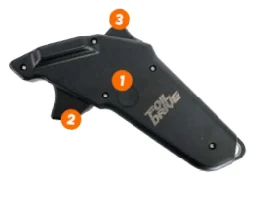
- Power Button
- Throttle Trigger
- Cruise Control Trigger
Tip: The controller keypad is locked by default (LCK). Before accessing the settings menu, you'll first need to unlock it by holding the Cruise Control Trigger for 3–5 seconds.
Symptoms
You may need this guide if your controller:
- Shows no battery percentage
- Shows incorrect battery percentage
- Displays no live data from the battery
- Has had settings accidentally changed
Check the Battery Serial Number
Each Foil Drive battery requires the controller to use the correct Battery Serial Number.
If the incorrect number is selected, battery information and telemetry may not display correctly.
Battery Serial Number Settings
Assist (22V) - 6
Assist PLUS (28V) - 8
Gen2 Max (All 40V batteries) - 11
Gen2 SLIM - Performance (40V) - 11
Gen2 SLIM - Endurance (28V) - 8
Change the Battery Serial Number
Instructions
- Turn the controller ON.
- Press and hold the Cruise Control Trigger for 3–5 seconds to unlock the controller.
- Press and hold the Cruise Control Trigger, then briefly press the Power Button to enter the settings menu.
- Release the trigger.
Short press the Power Button until you reach:
5. Batt. Ser Num
- Press and hold the Power Button to edit.
- Short press the Power Button until the correct number is displayed for your battery.
- Press the Cruise Control Trigger to save the setting.
- Press the Cruise Control Trigger again to exit the menu.
Your controller is now configured for your battery.
Enable VESC Communication
If telemetry data is missing completely, first check that VESC Comm is turned on.
Instructions
- Turn the controller ON.
- Press and hold the Cruise Control Trigger for 3–5 seconds to unlock the controller.
- Press and hold the Cruise Control Trigger, then briefly press the Power Button to enter the settings menu.
- Release the trigger.
Short press the Power Button until you reach:
7. VESC Comm
- Press and hold the Power Button to enter.
Short press the Power Button until the setting displays:
*ON
- Press and hold the Power Button to save.
- Press the Cruise Control Trigger twice to exit the menu.
- Briefly press the Power Button to confirm telemetry information is now displayed.
Frequently Asked Questions
Why is my battery percentage missing?
The controller is either:
- Communicating with the battery incorrectly (VESC Comm is OFF), or
- Configured with the wrong Battery Serial Number
Do I need to change this every time I change batteries?
Only if you switch between battery models that require a different Battery Serial Number.
For example:
- Assist PLUS → Assist MAX Power = Yes
- Assist PLUS → Assist SLIM Endurance = No (both use Serial Number 8)
Will this damage my battery?
No. These settings only tell the controller how to communicate with the battery. An incorrect setting will prevent telemetry from displaying correctly but will not damage the battery. Displaying incorrect battery information could result in a fully drained battery, which may potentially cause charging issues if the battery is not charged after the session.
Still Having Issues?
If you've completed all of the troubleshooting steps above and your issues persist, the next step is to submit a warranty claim for assessment.
Please complete the warranty form for your region and ensure you include:
- Your Foil Drive serial number
- A detailed description of the issue
- Clear photos and/or videos demonstrating the fault
- Proof of purchase receipt
Providing complete information when submitting your claim helps our Support team diagnose the issue faster and reduces delays in processing your warranty.
Warranty Claim Forms